 Siddharth Saoji
Summary
This is an exploration into creating no frills videos from a an audio file and static image, for free, in 3 steps using Google Colab.
Context and Purpose
Recently, I needed to upload a solo audio podcast series on a Facebook group, but currently Facebook, Youtube and many other content distribution platforms only allow images and/or videos to be uploaded. The well known work around this is creating a video out of that audio file and uploading that. This resultant video is known as a audiogram and is used by many audio creators to distribute their content.
Now, there are paid services like Headliner.app and Wavve.co which do this for you with feature rich customisation. One can also do this using free apps like Audacity or default video editors like Windows movie maker.
Despite the above my specific requirements led me to build this solution, I wanted to create video files:
- Fast (Within 2–3 steps)
- Not using my laptop’s meagre compute resources
- With an option to execute this from any machine
- For free.
Implementation
The solution takes (or creates) an image and overlaps it on top of the audio file’s duration to produce a video file. My aim of execution mobility meant I had to use a cloud based python environment for the purpose. I chose Google Colab, there are others like repl.it that have similar functions.
2 code versions were written with slight variation to cater for a couple of use cases.
Use case 1 (my use case) → The static image is generated from the code and has text indicating the content of the audio. The code is split into 3 parts (the 3 steps refereed to above).
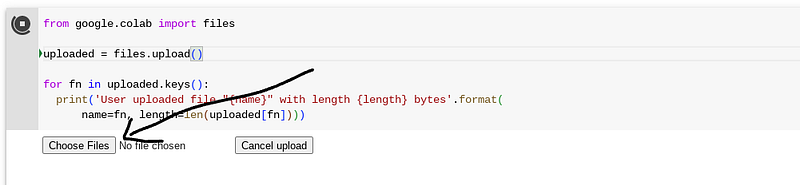
Step 1 — Upload relevant files. When you run this on a Google Colab cell you get a button to upload the audio file from your local system.
from google.colab import files
uploaded = files.upload()
for fn in uploaded.keys():
print(‘User uploaded file “{name}” with length {length} bytes’.format(
name=fn, length=len(uploaded[fn])))
Step 2 — Create an image to put on the video, choose background colour, text colour and text content. State name of the uploaded audio file in the code here “audio = AudioFileClip(‘replace_with_your_uploaded_audio.mp3’)” , when you run the code the video is produced, called output.mp4
from PIL import Image, ImageDraw, ImageFont
from moviepy.editor import *
# Create an image with a chosen background color and text
width, height = 640, 480
background_color = ‘white’
text = ‘text on the image’
text_color = ‘orange’
img = Image.new(‘RGB’, (width, height), background_color)
d = ImageDraw.Draw(img)
fnt = ImageFont.truetype(‘/usr/share/fonts/truetype/liberation/LiberationSans-Regular.ttf’, 30)
text_width, text_height = d.textsize(text, font=fnt)
d.text(((width - text_width) / 2, (height - text_height) / 2), text, font=fnt, fill=text_color)
# Save the image to a file
img.save(‘image.jpg’)
# Load the image and audio file
img = ImageClip(‘image.jpg’)
audio = AudioFileClip(‘uploaded_audio.mp3’)
# Make the image duration match the audio clip’s duration
img = img.set_duration(audio.duration)
# Set the audio track of the video to be your audio clip
video = img.set_audio(audio)
# Write the result to a file
video.write_videofile(‘output.mp4’, codec=‘libx264’, fps=24)
Step 3 — Download the video. Run this code and video will be downloaded in your local system.
from google.colab import files
files.download(‘output.mp4’)
Use case 2 -> You can upload the static image with the audio file instead of creating it. Here step 1 and 3 remain the same. With the user uploading the audio and image file in step 1.
Alternate step 2 — Note that you will need to change name of the uploaded image and audio to whatever you have uploaded.
from moviepy.editor import *
# Load your image and audio file
img = ImageClip(‘uploaded_image.jpg’)
audio = AudioFileClip(‘uploaded_audio.mp3’)
# Make the image duration match the audio clip’s duration
img = img.set_duration(audio.duration)
# Set the audio track of the video to be your audio clip
video = img.set_audio(audio)
# Write the result to a file
video.write_videofile(‘output.mp4’, codec=‘libx264’ , fps =24)
Concluding notes
- You can use the same code on your laptop if it has enough RAM. You just need to setup python environment and install moviepy and pillow libraries.
- When you upload files using the
files.upload()function in Google Colab, they are stored in the current runtime’s local file system. The uploaded files will be available for the duration of the runtime session, but they will be deleted when the runtime is recycled, which typically happens after a period of inactivity or after 12 hours, whichever comes first. - You could use files from google drive instead of uploading from your local system.
from google.colab import drive
drive.mount(‘/content/drive’)
After running above code, you will be prompted to go to a URL where you can authorize the Colab to access your Google Drive. After authorizing, you will receive a code which you can paste back in your Colab notebook to complete the mounting process.
Once your Google Drive is mounted, you can read from and write to it as if it were a local file system. For example, the path to a file in your Google Drive would be something like /content/drive/My Drive/filename.